Azure Entra ID
This documentation is specific to Azure Entra ID.
Create a new app registration
In Azure, you first need to create a new app registration. To do this, you can follow the official documentation page.
At some point, you will be asked to add a redirect URL. You need to choose the Web platform for this. The redirect URL is specific to your Eduframe environment. In the URL below we used the domain drieam.eduframe.nl which should be replaced with your Eduframe domain.
https://drieam.eduframe.nl/login/azure_active_directory/callback
If your LMS signs users in through Eduframe (for example, Canvas), you should add a second redirect URL:
https://login.eduframe.nl/login/azure_active_directory/callback
Find required information
Next you will need to find the values of the fields described in the previous page:
- Client ID
CalledApplication (client) ID. - Client Secret
You can create a new secret underClient credentials, make sure you copy the value in the column namedValue. - Authorize URL
At the top there is anEndpointstab, which will show you theOAuth 2.0 authorization endpoint (v2)URL. - Token URL
Also under theEndpointstab, copy the URL calledOAuth 2.0 token endpoint (v2).
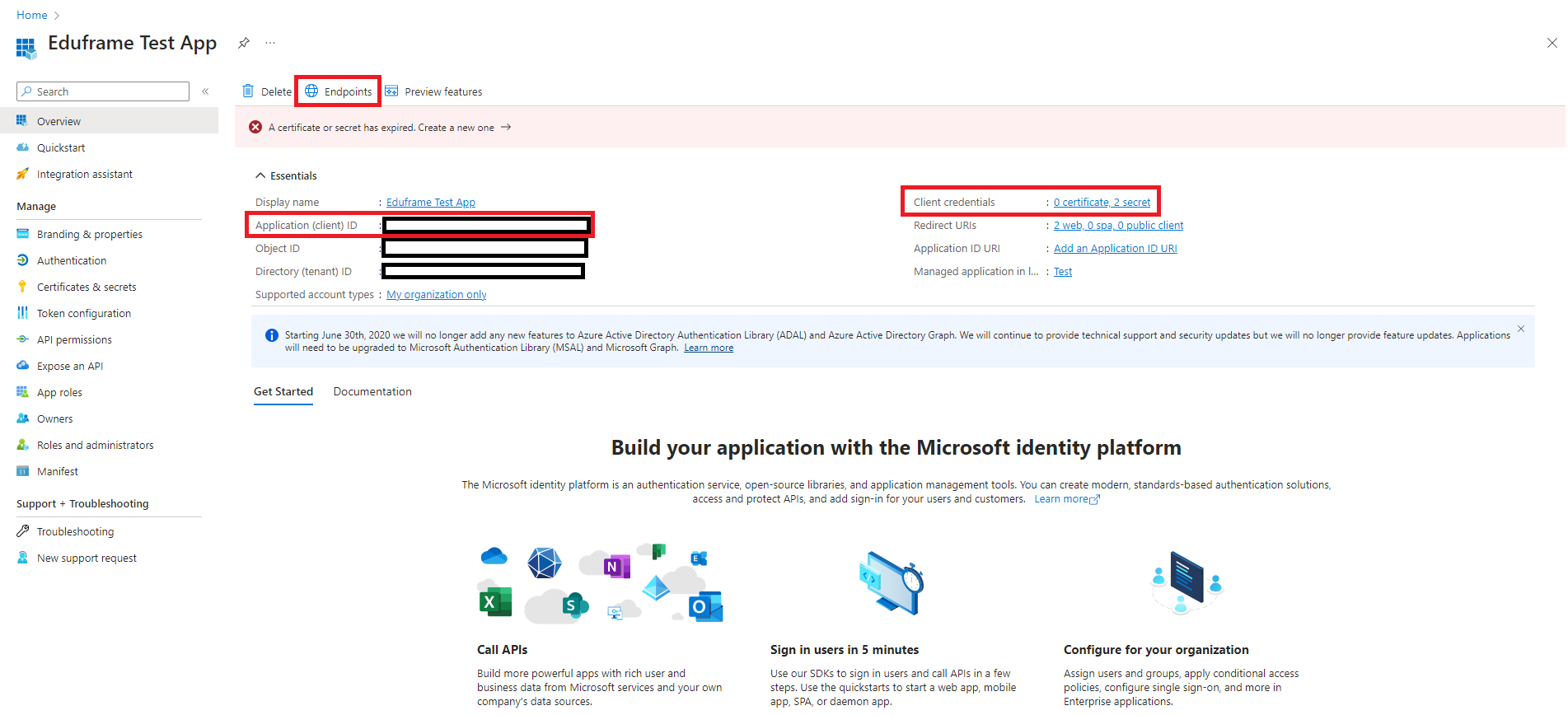
These are all the values you need to set up Azure Entra ID. After adding these to Eduframe, you can start provisioning users from Azure Entra ID into Eduframe, as explained in Sync users from Eduframe or Sync users from Identity Provider.
Where can I find the user's OID?
When you open a user in Azure, it will show you a field called Object ID. This is the OID you should use as the uid when creating an Authentication in Eduframe.